
Create and setup your account
Learn how to create, activate and manage your account with Groov
Lets get you started.
We have provided a step by step breakdown of the tasks to get you up and running in a matter of few minutes, the list below caters to your internal user audience across both developer community as well across business/functional teams across your organisation.
Register/Sign-up to an institution account with Groov
To get started, you’ll need to register/sign up as an account administrator for your Platform on Groov Customer Portal.
You can also email us by sending across the following details and we can get you setup ASAP.
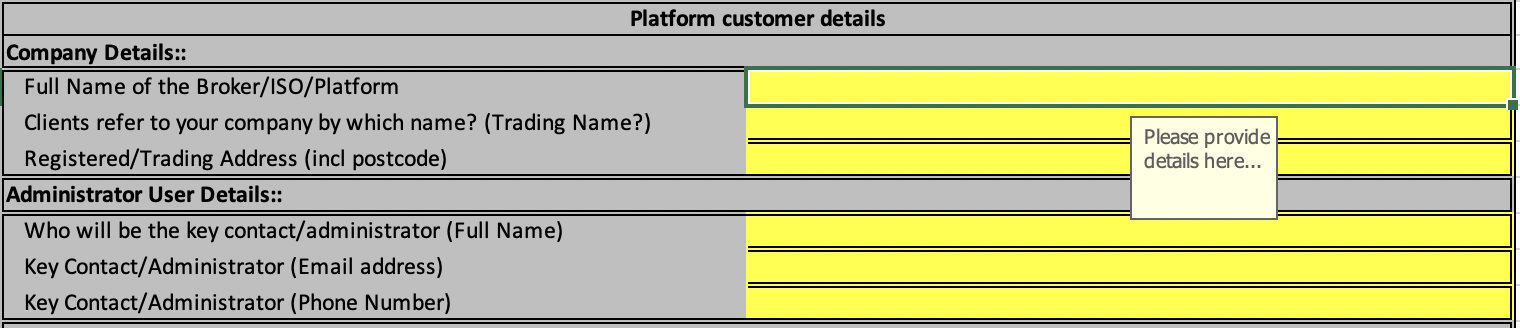
We’ll send you an email with a verification link. Verify your account with the link and then Sign in.
You are now logged in to the Groov Portal.
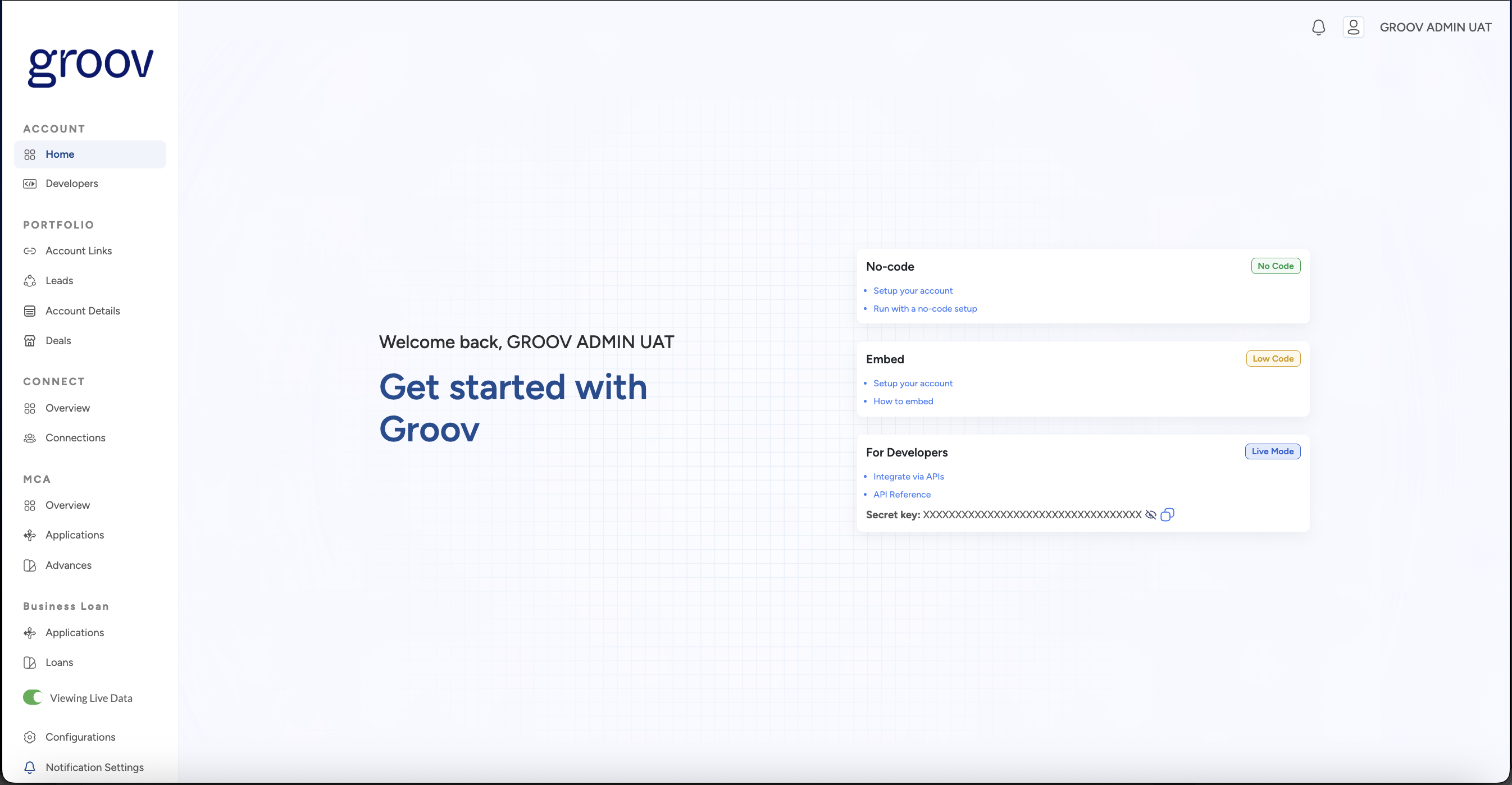
Account defaults
A default app gets created under your account allowing you to customise that app per your setup needs and you will be in a test mode by default (for details of modes, refer below)
Configurations
The Configurations section allows you to configure your setup across Embedded Insights and/or Embedded Capital.
In the Test mode, you will only be able to setup Embedded Insights features and will most likely find only one test product connection partner enabled by default with the name "sandbox". Please keep this enabled as this is a mocked up partner that we have setup to allow you to test the product, the consent flow and eventually provide you the ability to retrieve the manufactured test data we have setup for the 'sandbox' partner.
Test vs Live mode
The sandbox environment you have access to is in TEST mode by default, this implies any connections you make, accounts you select and data you retrieve/access from Groov are all test/manufactured data and do not have relevance to any real account/business entity. The environment mode can be toggled between TEST and LIVE mode via the toggle button as you can see from the screenshot above.
The Live mode represents a fully fledged Live product/connection with us which implies you have contractually agreed the services with us. This mode will allow you to choose and configure the Live feature across both Embedded Insights and Embedded Capital offering depending on which ones you have enabled. Refer to Product configurations section for more details.
Whilst you are in a state of initial setup/testing phase, your account setup will prevent you from changing the toggle to Live. Once you are ready testing Groov and are ready to launch to your customers,please email us from your registered email address as per the instructions (hover above the toggle switch option) and we will enable the Test/Live toggle for your account. All API calls to Groov via its unified API also supports test calls vs Live calls.
Updated 8 months ago
What’s Next
For No-Code & Embed Widget setup platforms, proceed to White labelling. For Integrated setup platform, please proceed directly to Configure products section.